CI/CD Integration
Take your agentic testing workflow to the next level by integrating it into a full CI/CD pipeline. After completing this section, your workflow will run automatically on every pull request, posting test plans and results as GitHub comments.
Workflow Diagram

What You'll Achieve
- Triggers automatically when you create a pull request
- Generates and posts a test plan as a PR comment
- Waits for the Vercel preview deployment
- Executes tests against the preview environment
- Posts a test report with results back to the PR
To run the workflow automatically via GitHub Actions, we need to host the Mastra application on Vercel.
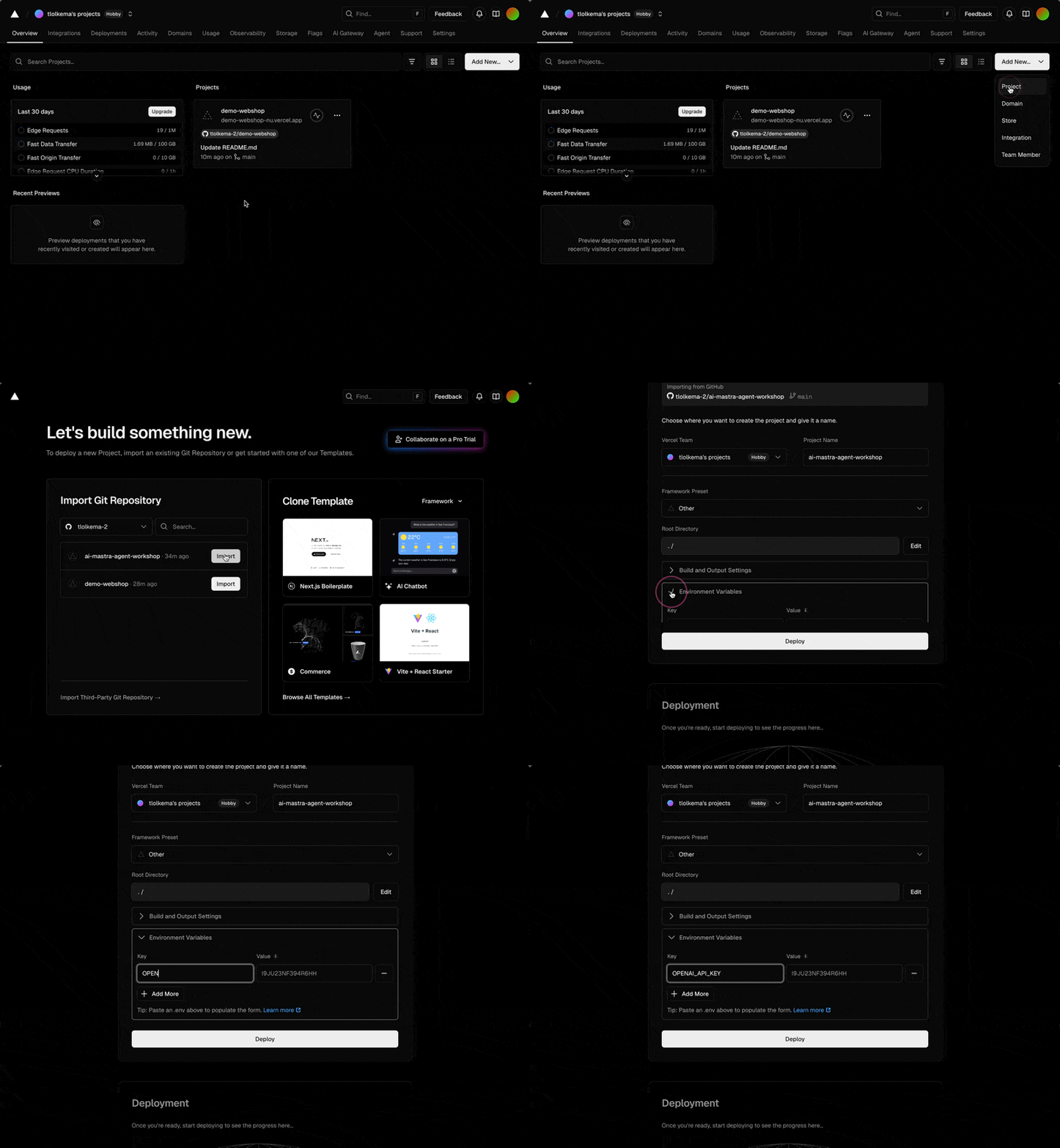
- Go to https://vercel.com
- Click "Add New..." → "Project"
-
Select the
ai-mastra-agent-workshoprepository
Important: If you don't see the Mastra repository, make sure you have allowed Vercel to view all your repositories
- Click on Environment Variables and add:
OPENAI_API_KEY = your OpenAI API key
GITHUB_TOKEN = your GitHub token
BROWSER_USE_API_KEY = your Browser Use API key- Click "Deploy"
Update the Mastra URL
-
Open the
demo-webshoprepository in your code editor -
Open the pipeline file:
.github/workflows/pr-review.yml -
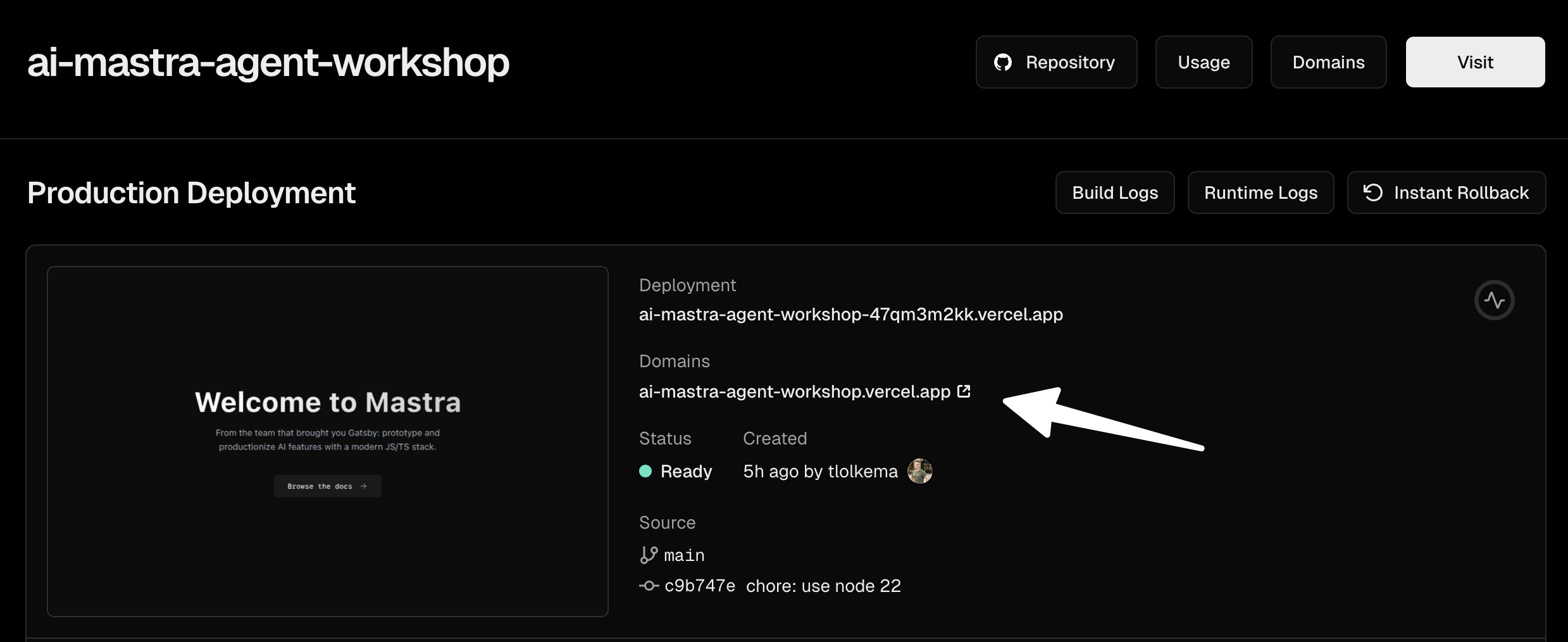
Change both occurrences of
https://ai-mastra-agent-workshop.vercel.appto the URL of your hosted Mastra instance - Commit and push the changes:
git add .
git commit -m "update mastra url"
git push origin main
Important: Make sure you select the domain and not the deployment URL
Enable GitHub Actions
-
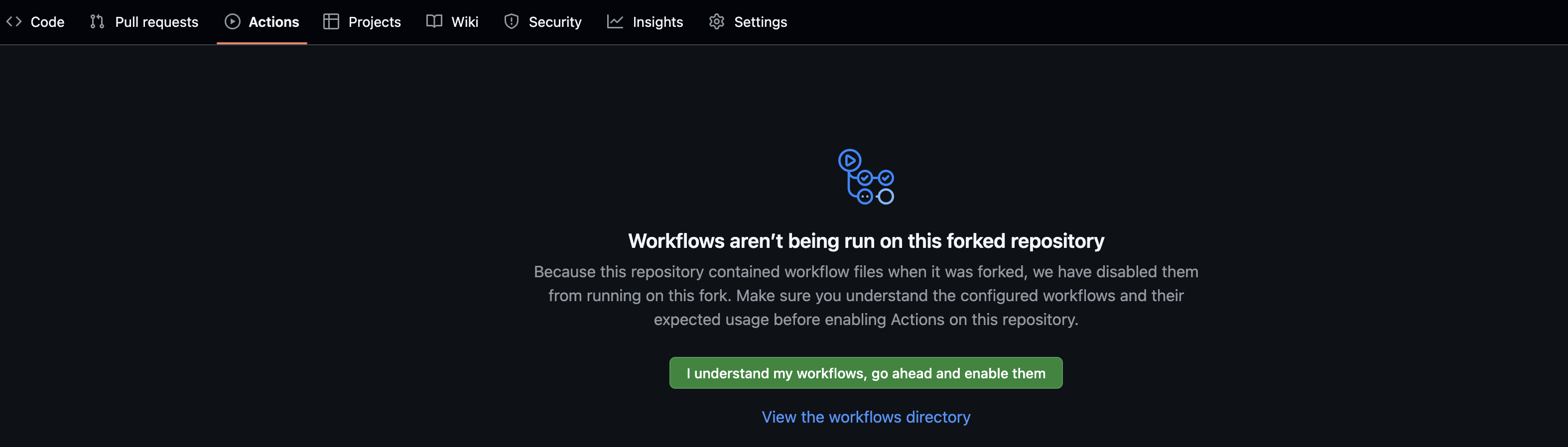
Go to your forked
demo-webshoprepository on GitHub - Navigate to the Actions tab
- Click "I understand my workflows, go ahead and enable them"
Now let's trigger the automated pipeline by creating a pull request with a new feature.
- Make sure you have a feature branch with changes (from the main workshop)
-
Go to your forked
demo-webshoprepository on GitHub - Click "Pull requests" tab → "New pull request"
- Select your feature branch
Important: Make sure to change the base repository for this pull request to your fork, not the original repository

- Click "Create pull request"
Once you create the pull request, the GitHub Actions workflow will automatically trigger.
Monitor Progress
- Go to the "Actions" tab in your repository to see the workflow running
- Watch the Browser Use dashboard to see the AI agent testing your application
Expected Results
The pipeline will automatically:
- Post a Test Plan: A comment will appear on your PR with the generated test cases
- Wait for Preview: The workflow waits for Vercel to deploy your changes
- Execute Tests: The browser agent runs the test cases against your preview URL
- Post Results: A test report comment will be added to the PR with pass/fail status
Useful Resources
If you're interested in learning more about AI agents: